👋 Hello hello,
Most AI tools still forget everything the moment your chat ends. Which means you spend half your time repeating context instead of actually moving forward.
That’s starting to change. Between knowledge graphs, migration tools, and switching workflows, AI is quietly becoming something closer to a real second brain.
Let’s dig in.
🔥🔥🔥 Three Highly Curated AI Stories
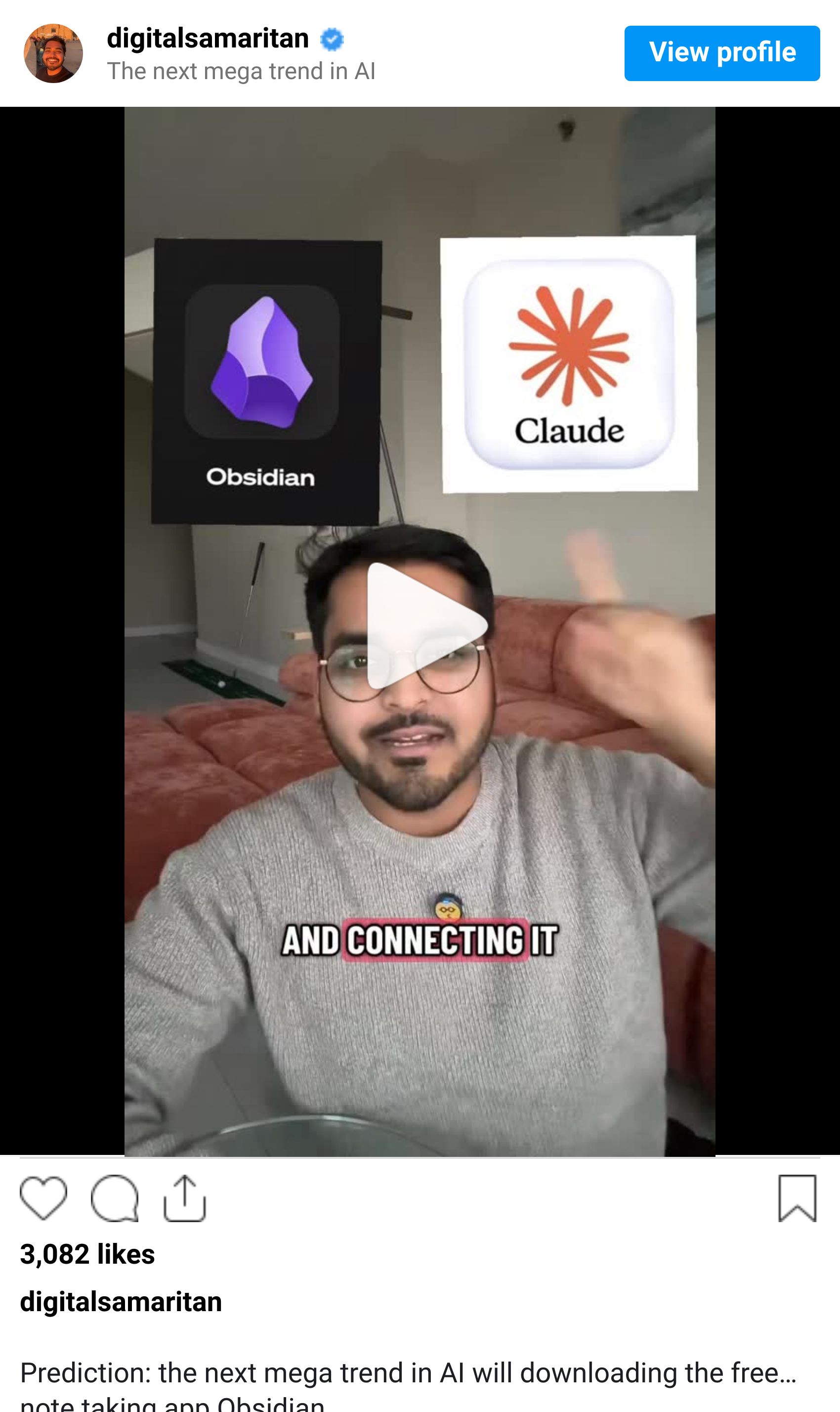
Obsidian is a private note-taking app that links your notes together and builds a knowledge graph. Instead of isolated documents, everything connects. Over time, patterns and relationships emerge across your thinking.
Power users are now connecting Obsidian to Claude. This allows Claude to access years of notes, ideas, and research. Instead of starting fresh each time, Claude can pull the right context directly from your personal knowledge base.
This changes how useful AI becomes. Your conversations no longer depend on what you remember to paste. Claude can respond based on the full picture of your work.
A Reddit post titled “Cancel your ChatGPT Plus” gained massive attention this week, with thousands of upvotes and comments. The backlash comes from reports that OpenAI agreed to work with the Pentagon, which sparked outrage among some users.

This triggered a wave of users publicly canceling their subscriptions and discussing alternatives. Much of the discussion is happening on Reddit and social media, where sentiment has shifted quickly.
Regardless of where people stand, the reaction shows how closely users are watching the decisions these AI companies make.
Claude introduced a feature that allows users to import their memory from other AI tools. You run a prompt inside your existing AI assistant, then paste the output into Claude’s memory settings.

Claude can then continue conversations with the same context. It already understands your projects, preferences, and history.
This removes one of the biggest barriers to switching. Instead of starting over, your new assistant begins with your existing context. For many users, this makes experimenting with new tools much easier.
🔥🔥 Two Tools Worth Trying Today
If you’re new to Claude, there are three settings worth configuring right away. These make Claude far more useful from day one.
First: Import memory from other AI tools
Go to Settings → Capabilities → Import Memories. Claude gives you a prompt. Run that prompt inside ChatGPT (or any other AI tool), then paste the response back into Claude. This lets Claude understand your past context immediately.
Second: Add your memory to Gemini Instructions (optional, but useful)
If you also use Gemini, you can paste that same memory summary into Gemini → Settings → Instructions. This keeps your context consistent across tools.
Third: Enable Connectors so Claude can access your real data
Go to Settings → Connectors and connect tools like Google Drive, Notion, or GitHub. This allows Claude to pull files, analyze documents, and generate outputs using your actual work.
Once these three are set up, Claude stops feeling like a blank slate and starts behaving like a real assistant.
See the walkthrough here:

If you’re new to Claude or want to use it more effectively, we’ve created a complete masterclass with 20 video chapters.
It covers workflows, settings, and practical ways to use Claude in your daily work. This is designed to help you move beyond simple chats and start building real systems.
🔥 Things You Didn’t Know You Could Do With AI

Claude can connect to external tools and extract detailed data from platforms like Instagram. It can analyze posts, engagement metrics, and performance automatically.
Here’s how to do it:
1. Open Claude and connect it to Apify using connectors.
2. Ask Claude to extract engagement data from your Instagram account.
3. Claude will find the correct scraping tool automatically.
4. It will generate a report showing posts, captions, likes, and performance.
5. Review the report and identify your top-performing content.
Before you go, did today's newsletter help you stay ahead?
💬 Quick poll: What’s one task you’d want AI to run automatically for you?
Until next time,
Kushank @PracticalyAI
